Google search

Basic and advanced computer skills like Excel with macros, How to speed up your PC, C, CPP, Java programming, HTML, JavaScript, PHP, Wordpress, all web tools, Android tutorials, MySQL Tutorials, WAMP server installation. etc.

Clear Excel Sheet using VBA

To clear the entered data in the current sheet of MS-Excel application follow the below simple steps.

1. Click on " Developer" tab in MS-Excel as shown in below image.

2. Click on "insert" and select "command Button", follow image.

3. Drag the button on the sheet and right click on it, select properties->Caption->Enter text like "Empty Sheet" 

4. After inserting button, now right click on button->"View Code", enter following code in it.

Private Sub CommandButton1_Click()
Dim resp As Integer
resp = MsgBox("Are you sure you want to clear the sheet?", _
vbYesNo + vbQuestion, "Clear Sheet")
If resp = vbYes Then
    Cells.ClearContents
Else
  End If
End Sub

5. Now enter some data in the sheet, just refer below image.

6. Now, press F5 or Run the form or Click on "Empty Sheet" button and you'll see following image with confirm dialog box.

7. After pressing "Yes" button on the message box, all the data which was entered in the sheet is removed and sheet looks new! (see below image).

Note: To save your Macros for future use, please save as "Excel Macro-Enabled Workbook" in save as type drop down menu. 

 That's all for now! Happy reading! :) 

You can also visit my other Excel Examples on Macros

SPEED UP YOUR PC

To speed up your windows XP/7/8/8.1/8.2 PC, Just follow the below steps to make your PC running faster and reliable.

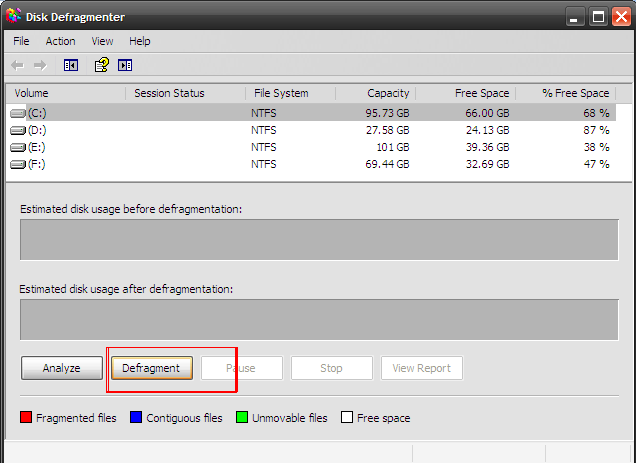
1. Defragment your hard drive: After accessing and storing lots of files on your computer hard drive it is common that files or folders get scattered in memory.  
Click->Start->Accessories->System tools->Disk Defragmenter [follow below image]

2. Uninstall unused program: It is better to uninstall unused applications or programs.[follow below steps with image]
Start->Settings->Control Panel->Add or Remove Programs->Select any application that you want to uninstall and click on "Remove" button.

3. Cleanup you disk: This enables us to clean hard drive and allows it to run faster.
Start->Programs->Accessories->System Tools->Disk Cleanup


4. Delete unused files: Delete unwanted files.

5. Remove programs from startup: These are the program which set themselves to start with windows operating system automatically when you start your machine every time. 
Start->Run->Type "MSCONFIG" -> Press Enter [see below image]

 6. Scan with Genuine Anti virus: It is better to scan your PC with genuine anti-virus to clean all viruses to make PC faster.  
Start->Select your Anti-virus and run Complete scan

7. Disable indexing: It is better to disable indexing on selected drive to make system faster. Here are the steps.
Double click on "Computer" icon ->Select any drive ->Right Click -> Properties-> uncheck "Allow indexing service...." 

8. Remove Log files : to remove log files,  follow below steps with screen image
Start->Run->then type “eventvwr” select "Application" click on clear all events and also perform same steps for "System" option.
  
9. Delete temp folder files: Start -> Run -> type “%temp% then press enter and select all temp files then press “shift+Del”.


That's all for now, Happy Reading!

Are you looking for academic projects on IT, Computer Science for BCA, Diploma, B.E., M.Tech, MCA and Management for BBM, MBA and PGDBM etc? Click here and you'll get complete project with all details. 

COBOL Programs

1. COBOL program on Arithmetic Operation 
      *PROGRAM TO PERFRM ARITHMATIC OPERATIONS USING COMPUTE VERB.
       IDENTIFICATION DIVISION.
       PROGRAM-ID. AOP.
       ENVIRONMENT DIVISION.
       DATA DIVISION.
       WORKING-STORAGE SECTION.
       01 A PIC 9(4).
       01 B PIC 9(4).
       01 SUM PIC 9(4).
       01 SUB PIC 9(4).
       01 MUL PIC 9(4).
       01 DIV PIC 9(4).99.
       PROCEDURE DIVISION.
       START-PARA.
           DISPLAY "ENTER THE VALUES OF A AND B".
           ACCEPT A.
           ACCEPT B.
           COMPUTE SUM = A + B.
           COMPUTE SUB = A - B.
           COMPUTE MUL = A * B.
           COMPUTE DIV = A / B.
           DISPLAY "SUM = ", SUM.
           DISPLAY "SUB = ", SUB.
           DISPLAY "MUL = ", MUL.
           DISPLAY "DIV = ", DIV.
           STOP RUN.
2. COBOL Program to display SUM and Average values
      *PROGRAM TO FIND SUM AND AVERAGE OF 6 NUMBERS.
       IDENTIFICATION DIVISION.
       PROGRAM-ID. SUM-AVG.
       ENVIRONMENT DIVISION.
       DATA DIVISION.
       WORKING-STORAGE SECTION.
       01 N1  PIC 9(4).
       01 N2  PIC 9(4).
       01 N3  PIC 9(4).
       01 N4  PIC 9(4).
       01 N5  PIC 9(4).
       01 N6  PIC 9(4).  
       01 SUM PIC 9(6).
       01 AVG PIC 9(4).99
       PROCEDURE DIVISION.
       START-PARA.
           DISPLAY "ENTER VALUES FOR 6 NUMBERS".
           ACCEPT N1.
           ACCEPT N2.
           ACCEPT N3.
           ACCEPT N4.
           ACCEPT N5.
           ACCEPT N6.
           COMPUTE SUM = N1 + N2 + N3 + N4 + N5 + N6.
           COMPUTE AVG = SUM / 6.
           DISPLAY "SUM      = ", SUM.
           DISPLAY "AVERAGE  = ", AVG.
           STOP RUN.
3. COBOL Program to find Largest of Two Numbers
      *PROGRAM TO FIND LARGEST OF 2 NUMBERS.
       IDENTIFICATION DIVISION.
       PROGRAM-ID. LARGEST2.
       ENVIRONMENT DIVISION.
       DATA DIVISION.
       WORKING-STORAGE SECTION.
       01 A  PIC 9(4).
       01 B  PIC 9(4).
       PROCEDURE DIVISION.
       START-PARA.
           DISPLAY "ENTER THE VALUE OF A AND B".
           ACCEPT A.
           ACCEPT B.
           IF A > B
           DISPLAY "A IS LARGEST",
           ELSE
           DISPLAY "B IS LARGEST.
           STOP RUN.
4. COBOL Program to display Largest of 3 Numbers
      *PROGRAM TO LARGEST OF 3 NUMBERS.
       IDENTIFICATION DIVISION.
       PROGRAM-ID. LARGE3.
       ENVIRONMENT DIVISION.
       DATA DIVISION.
       WORKING-STORAGE SECTION.
       01 A PIC 9(4).
       01 B PIC 9(4).
       01 C PIC 9(4).
       PROCEDURE DIVISION.
       START-PARA.
           DISPLAY " ENTER A ".
           ACCEPT A.
           DISPLAY " ENTER B ".
           ACCEPT B.
           DISPLAY " ENTER C ".
           ACCEPT C.
           IF ( A > B )
           DISPLAY " A IS LARGEST ",
           ELSE IF ( B > C )
           DISPLAY " B IS LARGEST ",
           ELSE
           DISPLAY " C IS LARGEST ".
           STOP RUN.
5. COBOL Program to calculate Simple Interest
      *PROGRAM TO FIND SIMPLE INTEREST.
       IDENTIFICATION DIVISION.
       PROGRAM-ID. SI.
       ENVIRONMENT DIVISION.
       DATA DIVISION.
       WORKING-STORAGE SECTION.
       01 P PIC 9(4).
       01 T PIC 9(4).
       01 R PIC 9(4).
       01 SI PIC 9(4).99.
       PROCEDURE DIVISION.
       START-PARA.
           DISPLAY "ENTER PRINCIPLE AMOUNT : P".
           ACCEPT P.
           DISPLAY "ENTER TIME PERIOD : T".
           ACCEPT T.
           DISPLAY "ENTER RATE OF INTEREST : R".
           ACCEPT R.
           COMPUTE SI = P * T * R / 100.
           DISPLAY "SIMPLE INTEREST = ", SI.
           STOP RUN.
6. COBOL program to calculate Compound Interest
      *PROGRAM TO CALCUTE COMPOUND INTEREST.
       IDENTIFICATION DIVISION.
       PROGRAM-ID. CI.
       ENVIRONMENT DIVISION.
       DATA DIVISION.
       WORKING-STORAGE SECTION.
       01 P PIC 9(4).
       01 R PIC 9(4).
       01 N PIC 9(4).
       01 CI PIC 9(5).99.
       PROCEDURE DIVISION.
       START-PARA.
           DISPLAY "ENTER PRINCIPLE AMOUNT : P".
           ACCEPT P.
           DISPLAY "ENTER RATE OF INTEREST : R".
           ACCEPT R.
           DISPLAY "ENTER PERIOD OF LOAN : N ".
           ACCEPT N.
           COMPUTE CI = P * ( 1 + R / 100 ) ** N - P.
           DISPLAY "COMPOUND INTEREST = ", CI.
           STOP RUN.
7. COBOL Program to find the entered number is EVEN or ODD.
      *PROGRAM TO FIND NUMBER IS EVEN 0R ODD.
       IDENTIFICATION DIVISION.
       PROGRAM-ID. EVEN-ODD.
       ENVIRONMENT DIVISION.
       DATA DIVISION.
       WORKING-STORAGE SECTION.
       01 N PIC 9(4).
       01 REM PIC 9(4).
       PROCEDURE DIVISION.
       START-PARA.
           DISPLAY "ENTER NUMBER".
           ACCEPT N.
           DIVIDE N BY 2 GIVING N REMAINDER REM. 
           IF REM = 0
           DISPLAY " NUMBER IS EVEN ",
           ELSE
           DISPLAY " NUMBER IS ODD".
           STOP RUN.

8. COBOL Program to REVERSE the entered Number.
        IDENTIFICATION DIVISION.
        PROGRAM-ID. REV.
        ENVIRONMENT DIVISION.
        DATA DIVISION.
        WORKING-STORAGE SECTION.
        01 N PIC 9(6).
        01 REM PIC 9(4).
        01 REV PIC 9(6) value 0.
        PROCEDURE DIVISION.
        START-PARA.
              DISPLAY " ENTER THE NUMBER TO BE REVERSED ".
              ACCEPT N.
              PERFORM REV-PARA UNTIL N = 0.
              DISPLAY " REVERSED NUMBER = ", REV.
              STOP RUN.
        REV-PARA.
              DIVIDE N BY 10 GIVING N REMAINDER REM.
              COMPUTE REV = REV * 10 + REM.

9. COBOL Program to display Multiplication Table of Entered Number.
        IDENTIFICATION DIVISION.
        PROGRAM-ID. MTAB.
        ENVIRONMENT DIVISION.
        DATA DIVISION.
        WORKING-STORAGE SECTION.
        01 N PIC 9(2).
        01 I PIC 9(2) VALUE 0.
        01 P PIC 9(4).
        PROCEDURE DIVISION.
        START-PARA.
           DISPLAY " ENTER THE NUMBER ".
           ACCEPT N.
           PERFORM MUL-PARA 10 TIMES.
           STOP RUN.
        MUL-PARA.
           ADD 1 TO I.
           COMPUTE P = N * I.
           DISPLAY N " * " I " = " P.

10. COBOL Program to SWAP Two Numbers.
      *PROGRAM TO SWAP TWO NUMBERS.
       IDENTIFICATION DIVISION.
       PROGRAM-ID. SWAP.
       ENVIRONMENT DIVISION.
       DATA DIVISION.
       WORKING-STORAGE SECTION.
       01 A PIC 9(2).
       01 B PIC 9(2).
       PROCEDURE DIVISION.
       START-PARA.
           DISPLAY " ENTER THE VALUE OF A & B ".
           ACCEPT A.
           ACCEPT B.
           DISPLAY " THE VALUE OF A BEFORE SWAPPING ", A.
           DISPLAY " THE VALUE OF B BEFORE SWAPPING ", B.
           COMPUTE A = A + B.
           COMPUTE B = A - B.
           COMPUTE A = A - B.
           DISPLAY "-------------------------------".
           DISPLAY " THE VALUE OF A AFTER SWAPPING ", A.
           DISPLAY " THE VALUE OF B AFTER SWAPPING ", B.
           STOP RUN.

11. COBOL Program to find SUM of N Numbers.
      *PROGRAM TO FIND SUM OF N NUMBER.
       IDENTIFICATION DIVISION.
       PROGRAM-ID. SUM-OF-N.
       AUTHOR. MIT.
       ENVIRONMENT DIVISION.
       DATA DIVISION.
       WORKING-STORAGE SECTION.
       01 N    PIC 9(3).
       01 SUM  PIC 9(6) VALUE IS 0.
       PROCEDURE DIVISION.
       START-PARA.
           DISPLAY "PROGRAM TO FIND SUM OF N NUMBERS".
           DISPLAY "ENTER THE RANGE".
           ACCEPT N.
           PERFORM SUM-PARA N TIMES.
           DISPLAY " SUM = ", SUM.
           STOP RUN.
       SUM-PARA.
           COMPUTE SUM = SUM + N.
           COMPUTE N = N - 1.

12. COBOL program to find Factorial of Given Number.
       Identification division.
       Program-id. Fact.
       Author. MIT.
       Environment division.
       Data division.
       Working-storage section.
       01 n pic 9(3).
       01 x pic 9(8) value 1.
       01 i pic 99.
       procedure division.
       Start-para.
            display "Enter the no whose factorial is to calculated :".
            accept n.
            perform para-1  varying i from 1  by 1 until  i > n.
                display "The factorial of " n " is " x.
                stop run.
       para-1.
                compute  x  =  x  * i.

Pivot Table using Excel

Pivot table is used to sort, count or give the average of the data stored in a spreadsheet, Pivot tables are also useful for converting rows to columns etc.

Here are the steps to create a pivot table.

Step 1:  Start MS Excel Application

Step 2: Enter some data as following screen shot.

Step 3: Select your all data then click on "Insert" Tab and select "Pivot Table", follow below image.

Step 4: Select "range of data or cells" with sheet, follow the below screen.

Step 5: Drag the fields as per following screen shot to summarize your all data.

Step 6: Chart can be created without much effort, just click on "chart" and it will opens different chart type and select "Column" type[for this example only] and the chart is ready!. [refer below screen shot]

Advantages of Pivot table:-

1) A pivot table will quickly summarizes the data by any column, calculate average, sum, count, percentage etc.

2) Data can presented in a chart.

3) Data can grouped by year, category wise or date etc.


<<  Macro Example 


Creating an Excel form with Macros

This tutorial teaches you how to create an excel forms with Macros with step-by-step approaches. 

Step1 :  Open MS Excel Application and then click on “Developer” Tab  then click on “Visual Basic” option as shown in following screen shots. 


Step2: Click on “Insert” menu then select “UserForm” as shown in below image


Step3: Drag and drop the controls on the form (in this example:  3 Labels, 3 Text Boxes and 2 Buttons and set properties for Label1 to “Enter Product Name”, Label2 to “Enter Qty”, Label3 to “Enter Product Price”, Button1 to “AddNew Record” and Button2 to “Reset” in “Caption” under properties dialog box) follow below image.


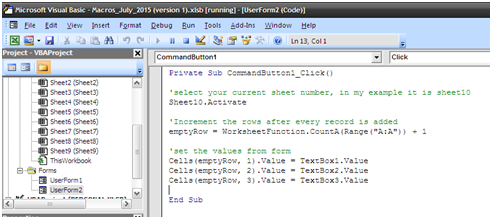
Step4: Now, Double click on “AddNew Record” button to write some code for inserting records to current sheet. Follow below screen image


Step 5: Now, test the form by running it, click on Green Forward arrow symbol or by pressing function key “F5” (see below image)


Step 6: You’ll see following output after pressing F5 or clicking on green forward arrow


Step 7: Enter a record as following and hit the “AddNew Record” Button. After this, one record is added to the sheet (sheet10 in this example)


Step8: Now close the form by clicking on “X” it will take you to the design mode. And enter some code for “Reset” button for resetting all values. Follow below image. [double click on “Reset” button and add following code]


Step9:  To call the User Form, which is created now, insert a button in the current sheet. [go to “Developer” tab and click -> Insert -> Command Button, drag on the sheet.   Follow below image.


Step 10: Right click on “ User Form” button and select “View Code”


Step 11: Enter following a line of code in it. Follow below image.


Step12: Now Click back on “Design Mode” to enable “User Form” button functioning, Click on “User Form” button and you’ll see following screen. [now start entering list of records] 


Step 13: Enter few more record by clicking on “AddNew Record” button and “Reset” for clearing all values.


That’s all for now! I’m coming with new Macro example in next blog.

Macros in Excel

A macro can be defined as the recording of a series of tasks. It’s the simplest form of automation – show a software program the steps you follow to get something done, and the software will follow along. When used right, macros can save you hours by automating simple, repetitive tasks.

A macro is a series of commands and functions that are stored in a Microsoft Visual Basic module (module: A collection of declarations, statements, and procedures stored together as one named unit. And can be run whenever you need to perform the task. 

For example, if you often enter long text strings in cells, you can create a macro to format those cells so that the text wraps. 

Recording macros When you record a macro, Excel stores information about each step you take as you perform a series of commands. You then run the macro to repeat, or "play back," the commands. If you make a mistake when you record the macro, corrections you make are also recorded. Visual Basic (Visual Basic: A high-level, visual-programming version of Basic. Visual Basic was developed by Microsoft for building Windows-based applications.) stores each macro in a new module attached to a workbook. 

To Create a Macro, Follow simple steps.
1. Start the MS Excel Application
2. Go to "Developer" Tab Menu 
3. Click "Record Macro" Button (follow screen shot) 
4. Save the macro as following screen shot.

5. After saving, Now Start typing some content as following.

6. After typing all records as shown in above image, now again go to "Developer"Tab and click on "Stop Recording" as shown in above image as well.

7. Save the work book as "Excel Macro Enabled Work Book" under "Save as Type" for future use of this macro example. (follow below screen shot image)

8. Now, Go to Sheet2 in the same work book and add a CommandButton (see below image)


9. Now, right click on Button, then select "View Code" (follow below image)


10. This will open next window as following and type following code in it to call newly created macro (refer below image)


11. Now click on "Call Macro" button to run the macro to fill all records in new sheet from existing macro.


That's all!

Next : Macros with Forms